Podcasts
OrgZ subscribes to podcasts, downloads episodes automatically on rules you set, and resumes playback where you left off.
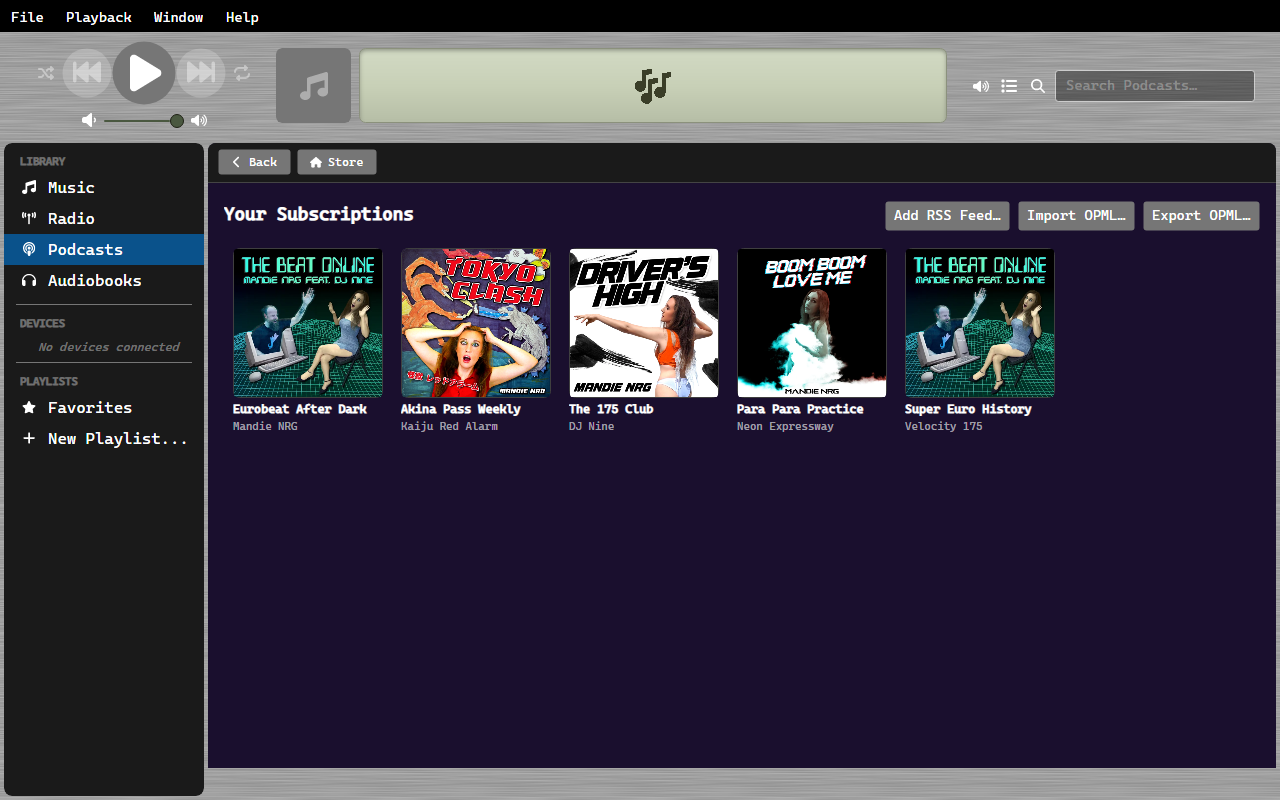
Browsing and searching
Click Podcasts in the sidebar to open the podcast view. It shows featured shows and categories to browse. Type in the header search box to search for a show by name.
Subscribing
Open a show to see its episodes, then Subscribe. Once you have at least one subscription, an indented Subscriptions row appears under Podcasts in the sidebar for quick access to the shows you follow.
Subscription rules
New episodes are handled automatically according to the defaults in Settings → Podcasts:
- Check for new episodes: how often feeds refresh: Hourly, Daily, Weekly, or Manually.
- When new episodes are available: Download all, Download the most recent one, or Do nothing.
- Keep: how many downloads to retain: all, unplayed only, or the last 1 / 2 / 5 / 10. Older downloads beyond the limit are pruned automatically.
Per-podcast overrides
Any show can override the global rules from its own page - set a different new-episode action or keep policy for just that podcast. Shows without an override follow the defaults.
Downloads
Episodes download in the background per the rules above. While a download runs:
- The LCD shows its progress, and the episode row shows a spinner (the same style as a CD rip).
- A finished download is marked with a green check.
- Click a green check to remove that download - it turns into a trash can on hover and confirms before deleting.
The download folder and total space used are shown in Settings → Podcasts, along with Clear downloads and Refresh subscriptions now.
Resume
OrgZ remembers your position in each episode. Starting a partly-played episode resumes from where you stopped.