Settings
Access settings via File > Settings or the native menu bar.
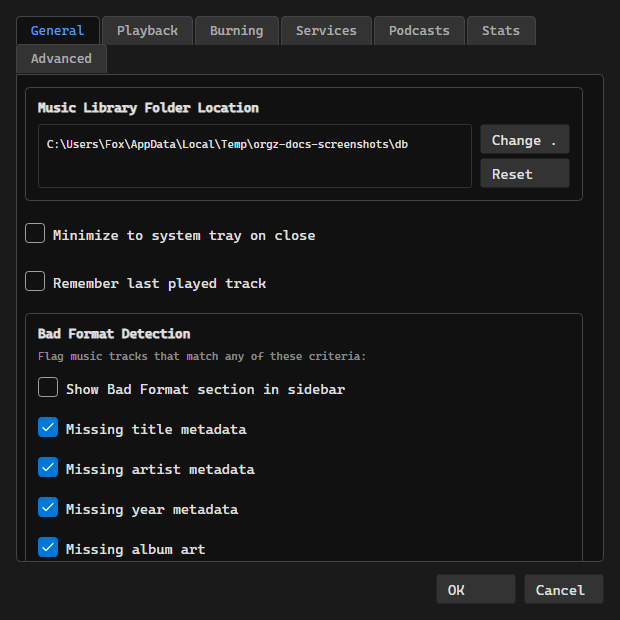
General
- Music Library Folder Location: Change or reset the folder OrgZ scans for music
- Minimize to system tray on close: Keep OrgZ running in the background
- Remember last played track: Resume playback on next launch
- Bad Format Detection: Which tracks get flagged into the Bad Format section - missing title, artist, year, or album art, and optionally every lossy format. Show Bad Format section in sidebar hides the section without losing the criteria.
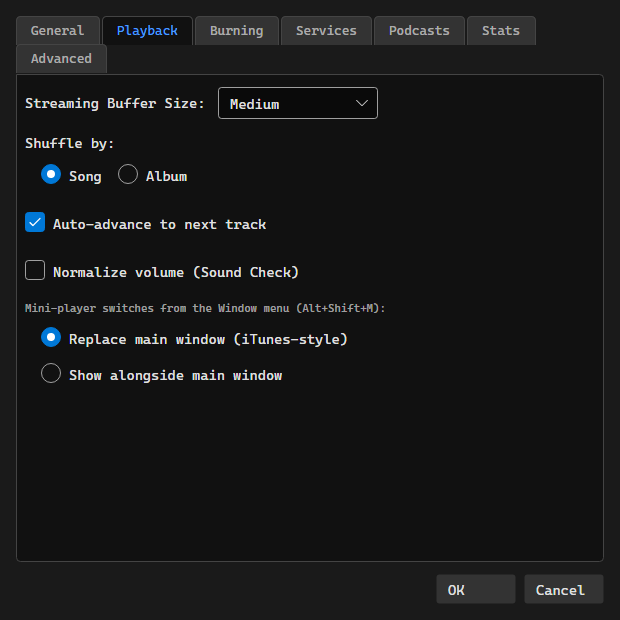
Playback
- Streaming Buffer Size: Adjust buffer for radio streams (Small / Medium / Large / Extra Large)
- Shuffle by: Shuffle by Song or Album
- Auto-advance to next track: Automatically play the next track when the current one ends
- Normalize volume (Sound Check): Levels loudness across tracks so quiet and loud songs play at a similar volume. Applies from the next track.
- Mini-player mode: Whether Alt+Shift+M replaces the main window (iTunes-style) or shows the mini-player alongside it
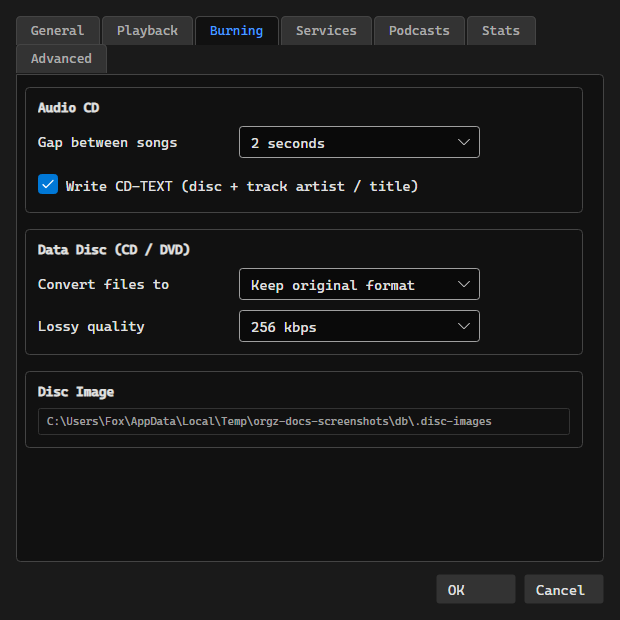
Burning
Defaults for the Burn Disc dialog; see Burning Discs.
- Audio CD → Gap between songs: None (gapless) or 2 seconds
- Audio CD → Write CD-TEXT: Disc and per-track artist / title in the lead-in
- Data Disc → Convert files to: Keep original format, MP3, AAC, Apple Lossless, FLAC, or WAV
- Data Disc → Lossy quality: 128 / 192 / 256 / 320 kbps for the lossy targets
- Disc Image: Where disc images are kept -
.disc-imagesinside your library folder. Shown, not editable.
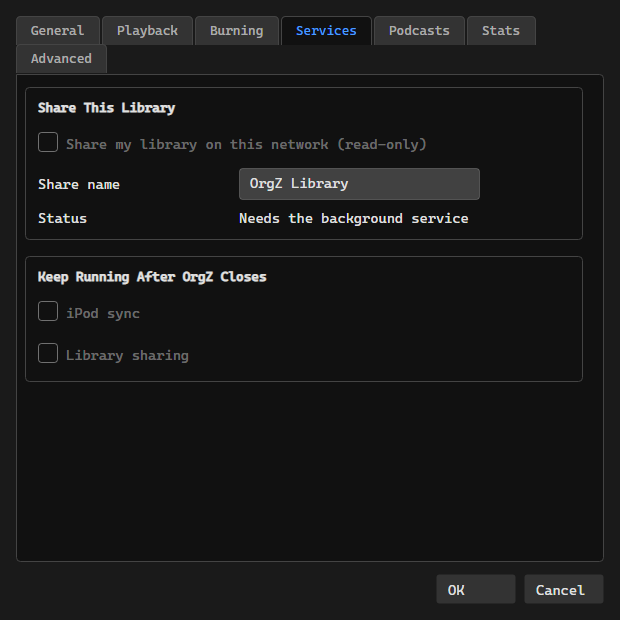
Services
- Share This Library: Turn on Share my library on this network (read-only), give the share a name, and watch the status line. Sharing is hosted by OrgZ's background service, so the checkbox is disabled when that service isn't answering. See Library Sharing.
- Keep Running After OrgZ Closes: Hand iPod sync and Library sharing to the background service so closing the window doesn't stop them. (Disc burns always survive the window - the service or the elevated helper owns the write.)
Podcasts
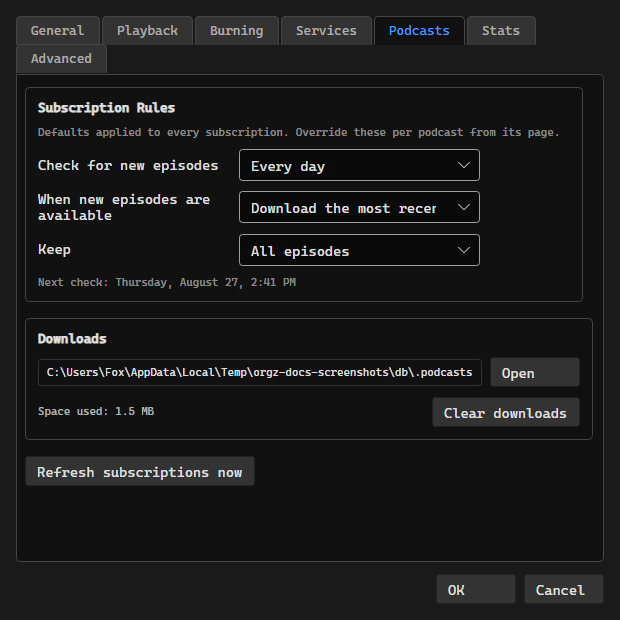
Defaults applied to every subscription (each can be overridden from the podcast's own page):
- Check for new episodes: Hourly, Daily, Weekly, or Manually
- When new episodes are available: Download all, Download the most recent one, or Do nothing
- Keep: all, unplayed only, or the last 1 / 2 / 5 / 10 episodes
Downloads shows the download folder (with a button to open it) and the space used, plus Clear downloads to remove them and Refresh subscriptions now to check immediately. See Podcasts for the full workflow.
Stats
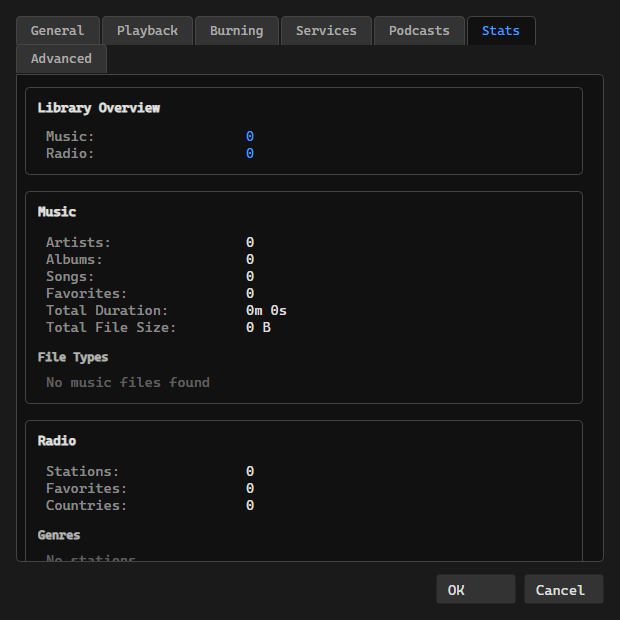
View detailed statistics about your library including track counts, file types, total duration, and radio station breakdowns.
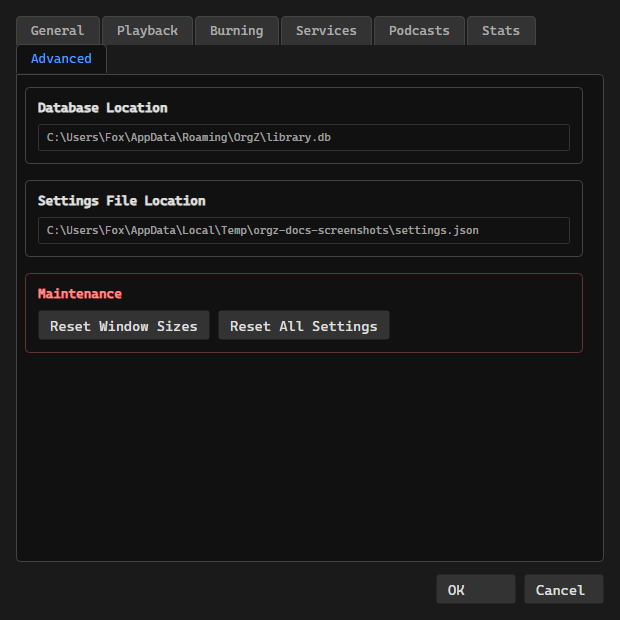
Advanced
- Database Location: Shows where the SQLite library database is stored
- Settings File Location: Shows where the JSON settings file is stored
- Reset Window Sizes: Restore the default size and position of every window and dialog
- Reset All Settings: Restore all settings to defaults