Playlists & syncing
Once a device is connected (see iPods & Rockbox players), you can browse its library, copy playlists onto writable devices, and eject it safely.
Browsing the device library
The device's tracks load into the main grid when you select it in the sidebar. They're kept separate from your local library - your Music Library view won't be cluttered with device tracks, and vice versa.
Each device also has a Playlists entry beneath it in the sidebar:
- Stock iPods: playlists come from the iTunesDB.
- Rockbox / other: playlists are read from
*.m3ufiles in the device's/Playlists/folder.
The sync plan
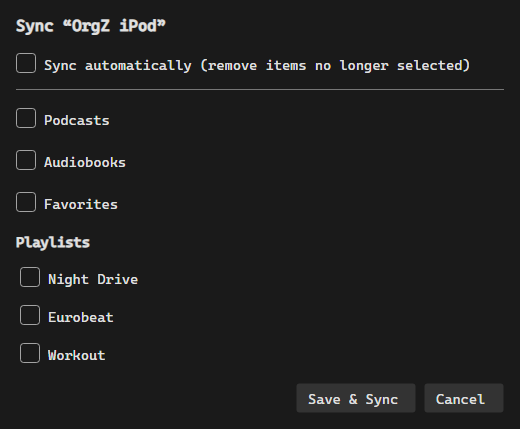
Sync runs the device's plan and Sync Settings opens the plan itself - both live on the device's header bar and its sidebar right-click menu (Sync opens the settings on first use). The plan is per-device and remembered, so after setup a sync is one click.
- Music - every music track in the library, like iTunes' entire-library sync. Playlists below stay selectable alongside it: they decide which named playlists exist on the device, the library option fills the music itself. If the library won't fit in the device's free space, this part is skipped with a message saying how much room it needs - everything else still syncs.
- Podcasts, Audiobooks, Favorites - each becomes its own section or playlist on models that support it.
- Playlists - each selected one is written as a native device playlist.
- Sync automatically - mirror mode: the device is made to match the plan, removing what is no longer selected. Off (the default) means add-only.
Syncing a playlist to a device
Right-click one of your library playlists and choose Sync, then the device. The submenu lists every connected device whose sync tier can take tracks - stock (Apple-firmware) iPods included; see Supported Hardware. With nothing suitable connected it reads No compatible devices.
Syncing copies the tracks themselves, transcoding on the way in when the
model can't play the source format (a FLAC becomes ALAC or AAC for a stock iPod;
Rockbox players take the file as-is). It then writes the playlist into whatever
database that generation uses - the Nano 5G's SQLite, the binary iTunesDB, or an
.m3u8 in the device's /Playlists/ folder for Rockbox.
OrgZ knows which library file each track on the device came from, so a track is never copied twice and a live recording is never mistaken for the studio version of the same song. Tracks put there by iTunes or an older OrgZ are matched on artist, title, album and length instead. A track whose file is missing locally is skipped and counted as a failure; the rest still go through.
Cover art is stored once per picture. The device remembers which covers it already has, so later syncs reuse them instead of writing another copy.
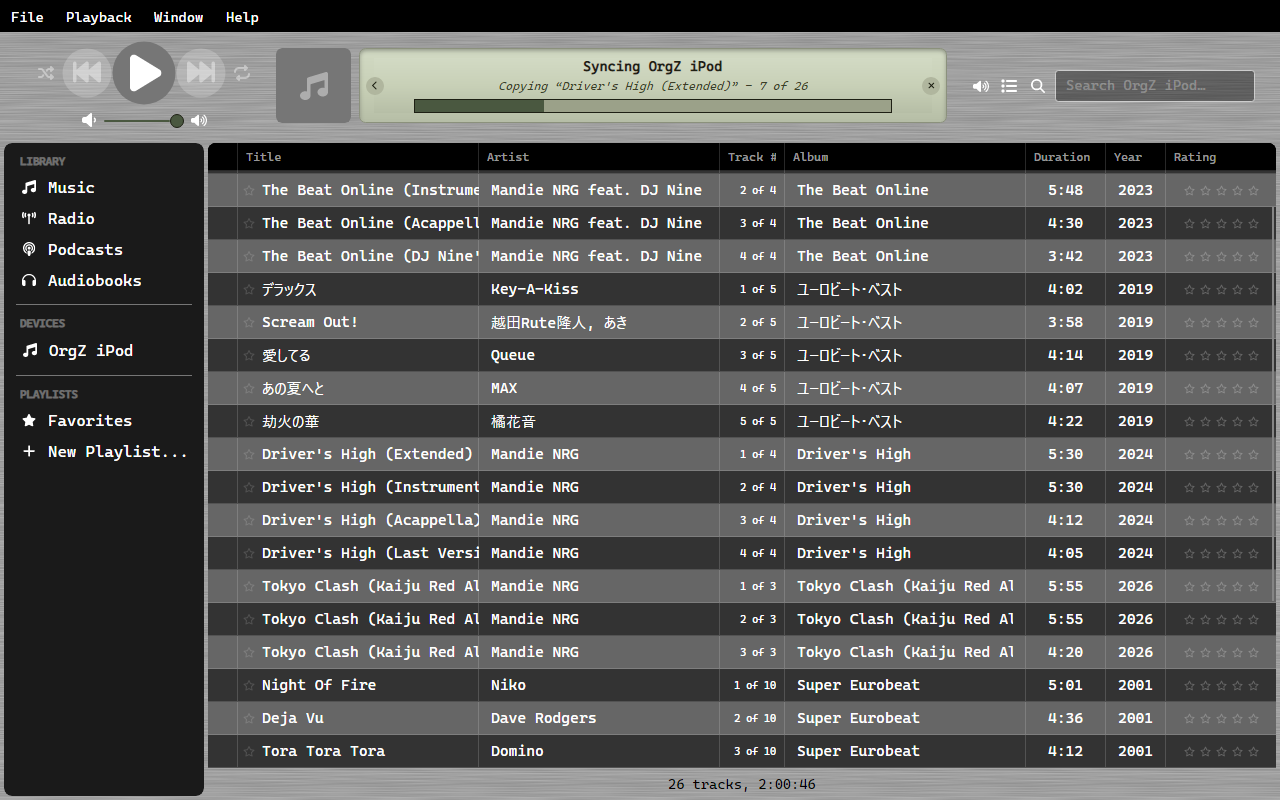
The new playlist appears under the device immediately - no reconnect needed.
Keep syncing after you close OrgZ
With Settings → Services → Keep Running After OrgZ Closes → iPod sync ticked, the file copy is handed to the background service, so quitting OrgZ mid-sync doesn't abandon it.
After a sync
OrgZ reads the device back and checks it against the model's hardware limits: every track typed, every cover stored, every playlist entry valid, no file or folder at a filesystem ceiling, the database within what the firmware can load. The status line reports the worst finding; the log has the full list.
Two problems the checks can find, the sync fixes on the spot: tracks whose cover art was lost get it rendered back from your library files, and a device where an older version stored one copy of the cover per track gets tidied so each picture is kept once. The checks run again afterwards, so the status line describes the device as it was left.
Ejecting
Right-click the device and choose Eject to safely remove it. OrgZ unmounts the volume and tears down its sidebar entry once the OS confirms removal. Always eject before unplugging so an in-progress write (like a freshly sent playlist) is fully flushed.
Troubleshooting
| Symptom | Likely cause |
|---|---|
| Device doesn't appear | Not mounted yet, or (Linux) your user lacks access - see Installation. |
| Sync says "No compatible devices" | Nothing is connected whose sync tier can write tracks - a Nano 6G/7G or an iPod Touch, for instance. |
| Sync stops with "ffmpeg wasn't found" | A stock iPod needs ffmpeg to transcode. It ships with the release packages; a build run from source needs it on PATH. |
| Wrong model / missing identity | Re-run Refresh device info, or boot the iPod into Apple firmware once so OrgZ can read its serial and GUID. |
Sending tracks to a device
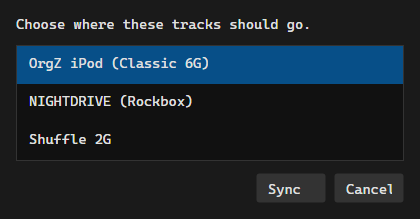
Select tracks, right-click, and choose Sync. When more than one device is connected OrgZ asks which one.