Music Library
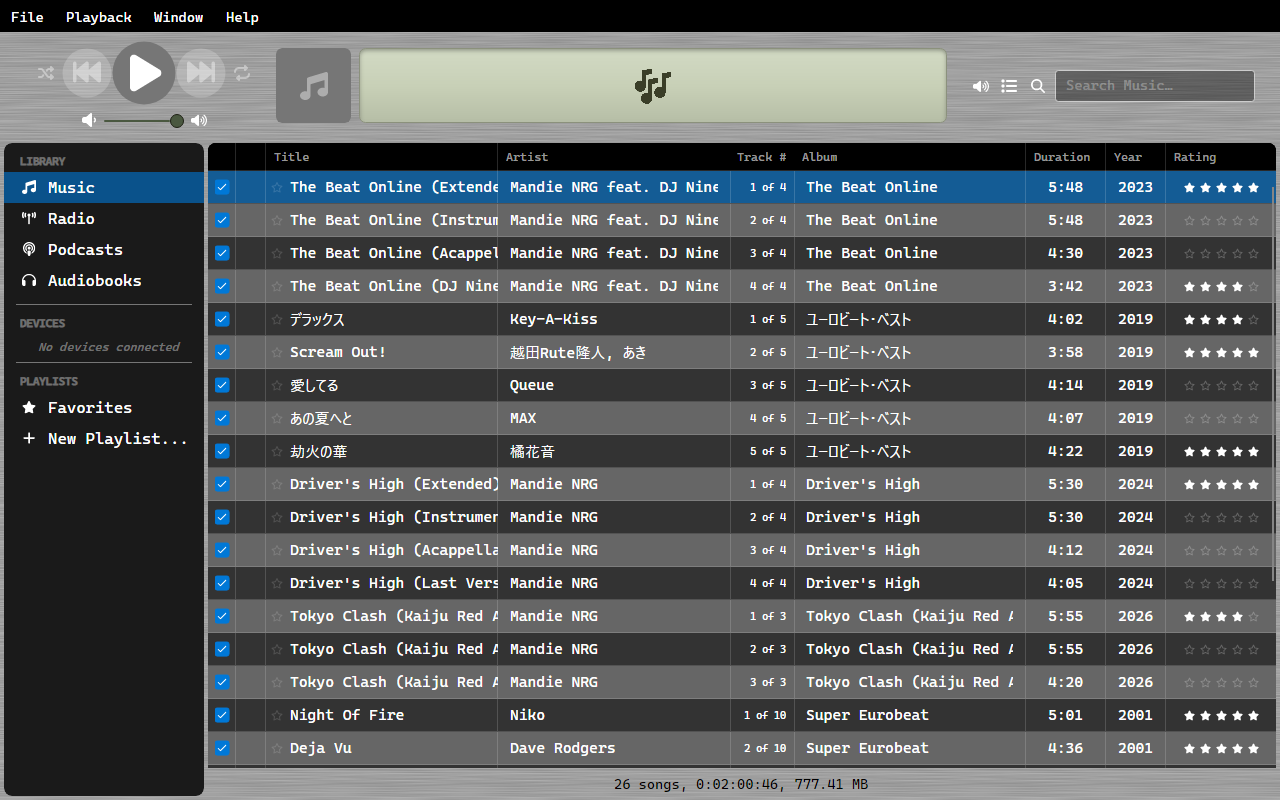
OrgZ scans your selected folder for audio files and extracts metadata using TagLib.
Supported Formats
| Format | Extensions |
|---|---|
| MPEG Audio | .mp3 |
| FLAC | .flac |
| AAC | .m4a, .aac |
| MPEG-4 audiobook | .m4b (filed under Audiobooks, not Music) |
| Ogg Vorbis | .ogg |
| Opus | .opus |
| WAV | .wav |
| WMA | .wma |
| APE | .ape |
Columns
The Music view shows: Title, Artist, Track #, Album, Duration, Year, and Rating, behind the iTunes-style tick column.
Click a column header to sort by it. Drag column headers to reorder them - the order is remembered per view. Right-click a column header to show the columns that are hidden by default: Plays, Extension, and Has Album Art.
Searching
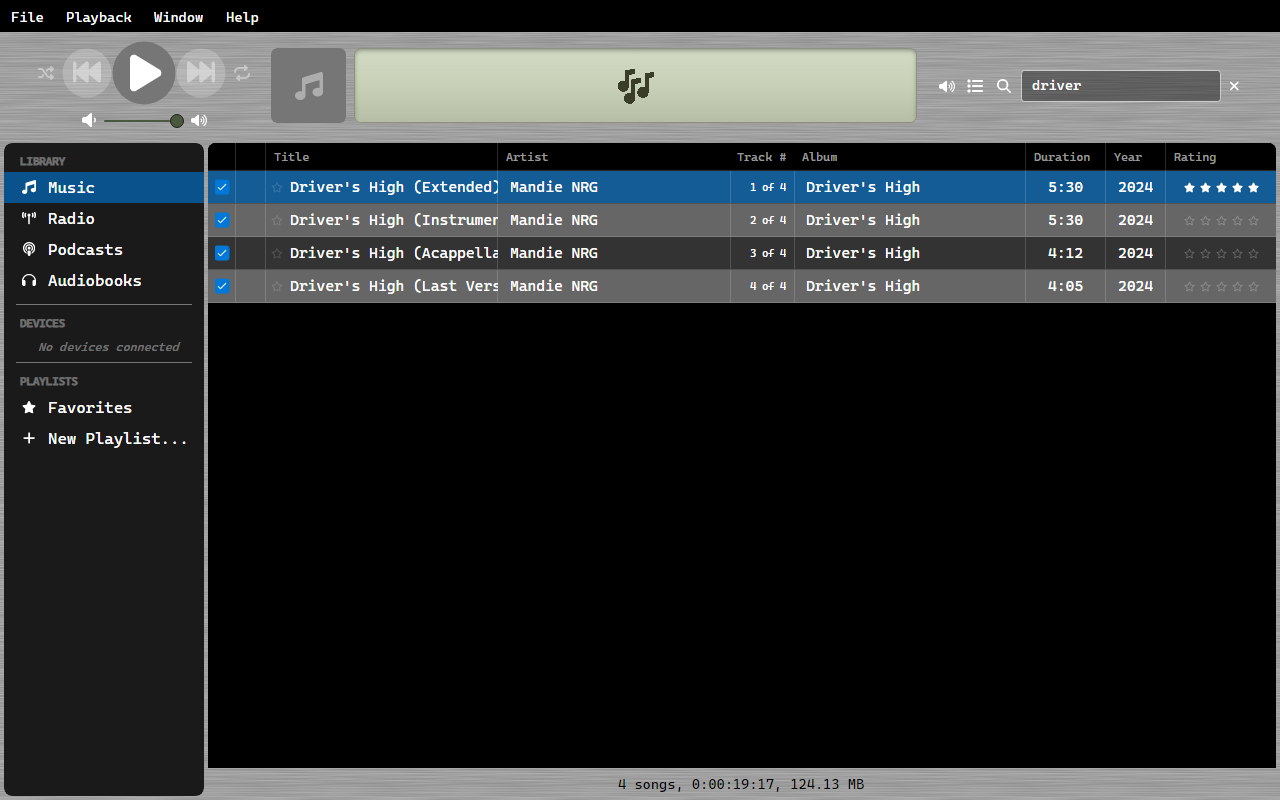
Press Ctrl+F (or click the search box) and type to filter the current view; the match runs against title, artist, and album. The footer summary (song count, total time, total size) reflects the filtered set, not the whole library. Press Enter to play the first result.
Ratings
Set a 0-5 star rating on any track from its right-click menu. Ratings show in the Rating column.
Right-click actions
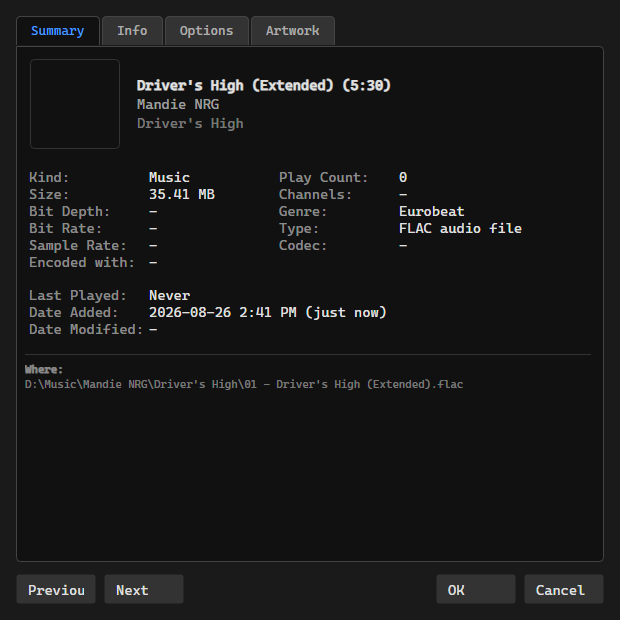
Right-clicking a track offers Play, Play Next, Add to Queue, Get Info, Rating, Add to Playlist, Sync (to a connected device), Check / Uncheck, Show in Explorer, Burn to CD..., and Remove from Library. Other views trim the list to what applies - a playlist adds Remove from Playlist, a read-only share drops the actions that would write.
Right-clicking inside a selection acts on the whole selection. Right-clicking outside one selects that track first, the same way dragging does.
Remove from Library deletes the file
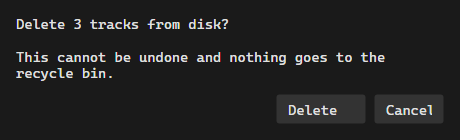
Remove from Library is not "hide from OrgZ" - it permanently deletes the selected tracks' files from disk. There is no undo and nothing goes to the recycle bin. OrgZ asks for confirmation first, and that dialog is the last chance to stop.
File Watching
OrgZ monitors your music folder for changes. Added, modified, or deleted files are automatically reflected in the library.
Changing Library Folder
Open Settings > General and use the Change ... button next to Music Library Folder Location. Reset puts it back to the default.