Playback
OrgZ uses LibVLC for audio playback, so it handles most audio formats and streaming protocols.
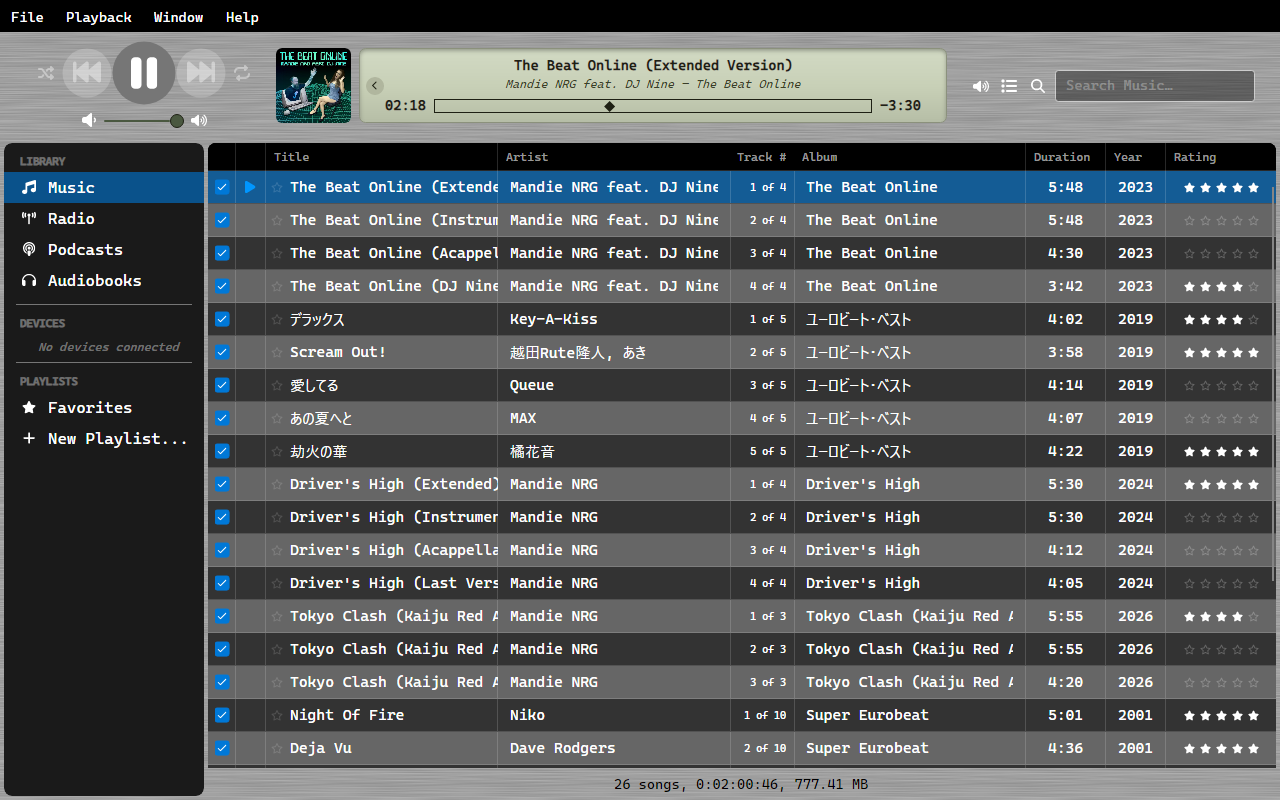
Controls
- Play/Pause: Toggle playback
- Previous/Next: Navigate within the current playback context
- Volume: Slider with mute and max buttons
- Seek Bar: Click or drag to seek within a track (disabled for live streams)
Shuffle and Repeat
- Shuffle (S) plays the context in a random order. Choose whether it shuffles by song or by whole album in Settings → Playback.
- Repeat (R) cycles between off, repeat-all (the whole context), and repeat-one (the current track).
Playback Context
When you start playing a track, OrgZ captures a snapshot of the current filtered list as your playback context. This means:
- Auto-advance plays the next track from where you started
- Previous/Next navigate within that same list
- Switching views doesn't interrupt playback
- Starting a track from a different view creates a new context
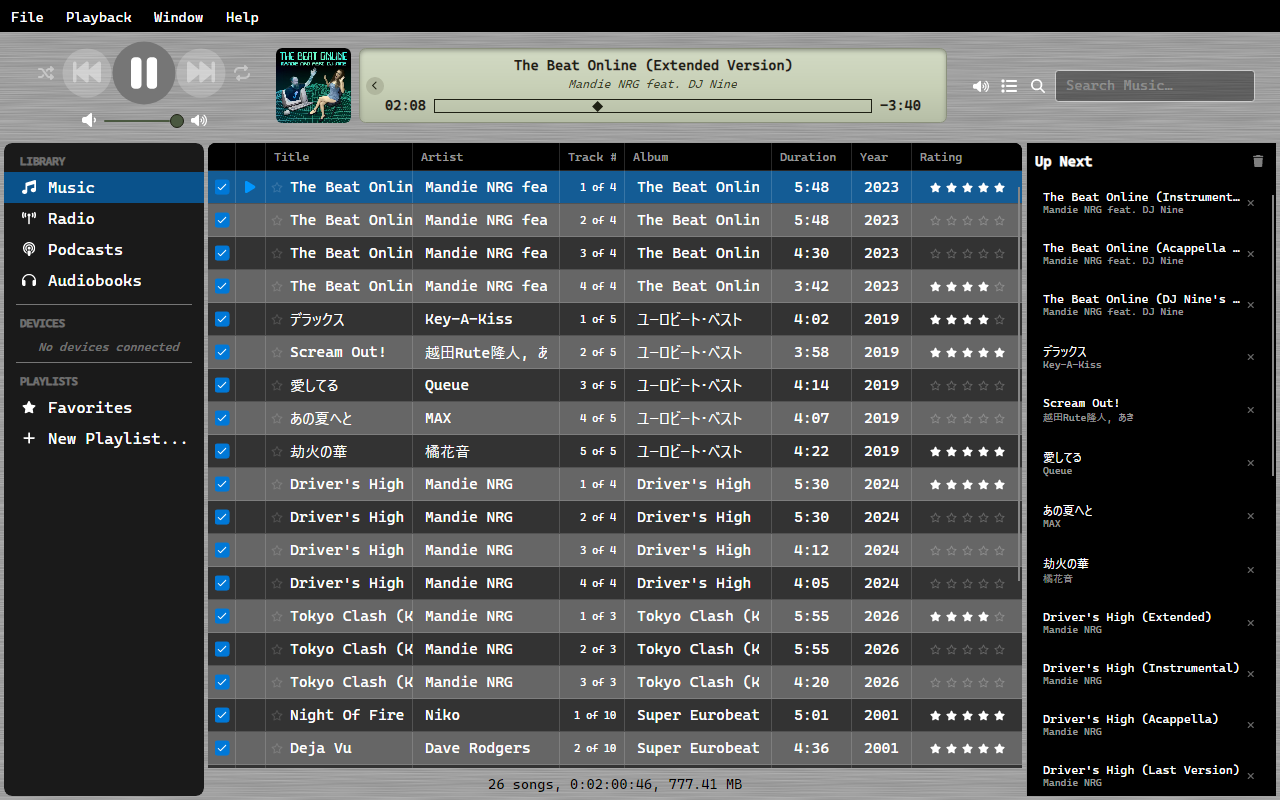
Live Streams
Radio streams show a "LIVE" duration and an animated progress indicator instead of a seek bar. Live ICY metadata updates the track info display in real time.
Navigate to Playing
Click the album art or track info area at the top to jump to the currently playing item in its source view.
Mini-Player
A compact always-handy player strip with transport controls, the seek bar, and now-playing info - for when you don't need the full window.

Per-Track Options
OrgZ supports per-track volume adjustment, equalizer presets, and start/stop time markers (configured via the track info dialog).
System Integration
OrgZ mirrors playback to the operating system so hardware and on-screen media controls work:
- Windows: media keys (play/pause, next, previous), taskbar thumbnail-toolbar buttons, and System Media Transport Controls.
- macOS: the Now Playing panel and media keys.
- Linux: MPRIS over the session bus - media keys and the desktop's now-playing panel (GNOME, KDE, XFCE,
playerctl).
Where the sound goes
The speaker icon beside the volume slider picks the output device, and more than one can be ticked at a time - including AirPlay receivers on your network. See AirPlay.